Output and templates
How to Create a Printable Schedule Template Online
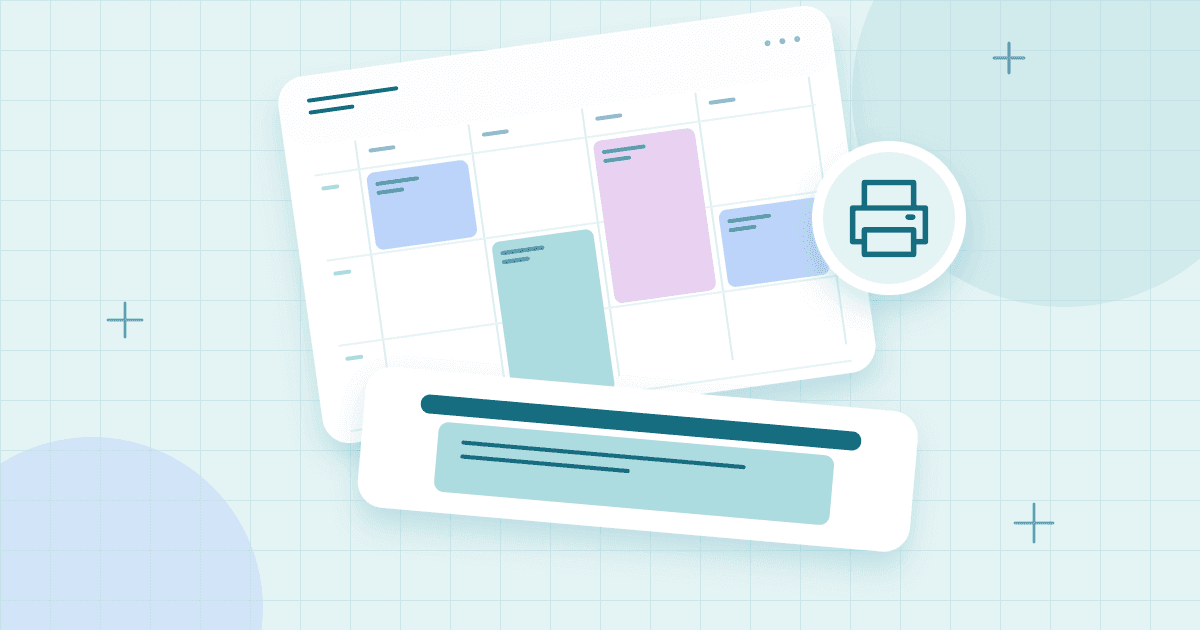
A printable schedule is useful when you want to see your plan without opening an app. It can sit on a desk, in a school binder, or on the refrigerator. But a timetable that looks excellent on screen can become difficult to read on paper if the columns are too narrow, the text is tiny, or the wrong paper orientation is selected.
This guide focuses on making a schedule that prints well. It covers choosing daily or weekly layouts, organizing events, preparing PDF or image output, and checking the final page. If you need help deciding what to put into the week, start with the weekly schedule guide. Here, we concentrate on turning that plan into a clear physical document.
What Is a Printable Schedule Maker?
A printable schedule maker lets you arrange activities in a timetable and produce a paper-friendly version. A weekly grid shows multiple days; a daily template leaves more room for detail. A list may suit schedules without exact hours.
Printability depends on more than having a Print button. The page needs appropriate margins, readable text, clear event boundaries, and a sensible relationship between the timetable and the paper size. An exported PDF is often the easiest format for consistent printing, while an image can be convenient for messages and digital reference.
Choose a Daily or Weekly Printable Template
A weekly schedule is ideal for recurring commitments, school classes, work routines, and a family overview. A daily schedule gives more space for notes, detailed appointments, and task priorities. A compact list can be useful for meetings or an itinerary where time labels matter more than colored hour blocks.
Consider your main reader. A student who checks a schedule on a phone may need a simple vertical layout. A family putting a chart on the refrigerator may prefer bold day headings and fewer details. A manager posting a roster might need employee names and exact shift times rather than decorative elements.
When choosing a schedule template, think about the final page first. A wide weekly timetable and a portrait sheet are not always a natural fit. It is easier to begin with a suitable layout than to squeeze everything into the wrong one at the end.
How to Make a Printable Schedule Online
Step 1: Set up the right time range
Open the free schedule builder and choose the days and hours you want to show. There is usually no benefit to displaying midnight through midnight when all activities happen during daytime. A narrower time range gives each meaningful block more space on the printed page.
Step 2: Enter events with short, useful names
Use labels that remain understandable without surrounding text. “Chemistry lab” is clearer than “Lab” when several subjects appear together. Include start and end times for time-sensitive activities. Long descriptions can stay in notes instead of crowding the main grid.
Step 3: Apply a restrained color palette
Color makes categories easier to recognize, but printed pages may be monochrome. Use readable event text, clear borders, and distinctive labels. Check that important information is still identifiable when colors are removed. Avoid placing pale text on a pale background or using very dark blocks that consume excessive ink.
Step 4: Select PDF, PNG, or browser Print
Choose a PDF for a document intended to be printed or archived. A PNG is useful when you want to place the timetable inside another document or send an image. A browser print option can work well if the page has an optimized print layout. These outputs are not equivalent to an editable backup of your schedule.
Step 5: Match paper size and orientation
Use the paper actually available to you, such as A4 or US Letter. A seven-column weekly grid often benefits from landscape orientation, while a detailed single-day plan may fit portrait better. Preview the full output rather than trusting that the default will be correct.
Step 6: Inspect the preview carefully
Look for clipped titles, missing final columns, unusually small text, and events split awkwardly across pages. If the timetable is hard to read, reduce unnecessary visible hours, shorten event names, choose a different orientation, or allow the schedule to cover more than one page. Do not force a crowded timetable onto one sheet merely because one page sounds convenient.
Step 7: Print a test copy when necessary
If the schedule will be posted publicly or used repeatedly, print one copy and read it from a normal viewing distance. A font that looks fine while zoomed in on a laptop may be too small on paper. Adjust and print again before distributing it.
Printable Schedule Example: Weekly vs. Daily
Consider the following two uses:
| Need | Better layout | Important details |
|---|---|---|
| Class timetable | Weekly landscape | Course names, times, room labels |
| Home routine | Weekly with broad blocks | Days, tasks, family-friendly labels |
| Busy appointment day | Daily portrait | Exact times, locations, breaks |
| Employee shift notice | Dated weekly roster | Staff names, dates, shift start/end |
| Study plan | Weekly with short sessions | Subject, task, planned duration |
These are starting suggestions. A schedule with very long event titles may need a wider page or a list view, regardless of its category. Readability should determine the final design.
PDF vs. PNG: Which Is Better?
A PDF schedule suits printing with predictable paper dimensions. A PNG schedule is an image convenient for messages and documents, but it can lose sharpness when enlarged.
Neither format should be your only editable copy. A visual export generally does not preserve schedule events as objects you can drag and edit later. Keep the source timetable in the editor or export an editable backup such as JSON if the tool supports it. This is particularly important when schedules are saved only in local browser storage.
Printing From a Phone or Tablet
Mobile printing works differently across browsers and devices. The available option may appear under Share, Print, or a system menu. If the timetable looks cramped on screen, try downloading a PDF and opening it in a dedicated PDF viewer before printing. Use the page preview to confirm orientation and margins.
Avoid relying on a screenshot of the editing interface. It may capture toolbars, menus, or a scrolled portion of the grid rather than a clean schedule. A purpose-built export is generally easier to read and distribute.
Make a Reusable Blank Schedule Template
A blank timetable is helpful when the same structure repeats. Configure the weekdays, hours, titles, colors, and categories before adding specific events. Keep one clean copy as a starting point. When you need a new week, duplicate it if the editor supports duplication, or start again from the same template.
For schedules that change frequently, a blank template may be more useful than a static PDF: you can revise the editable version and create a fresh printout. If the purpose is a recurring personal routine, combine it with our daily schedule guide.
Common Printable Schedule Mistakes
The most common mistake is trying to show too much. Tiny labels, excessive colors, and long descriptions all reduce clarity. Another is using an undated roster when readers need to know which week it covers. A third is forgetting that a printed copy can become outdated the moment an event changes.
Always include a clear title or date range when relevant. For work schedules, make sure employees know which version is current. For students, compare printed times with official class information. A clean printout is useful only if the content is accurate.
Frequently Asked Questions
How do I make a printable schedule for free?
Create a timetable online, enter events, and choose a printable export or browser print function when available. Check the preview for clipping and readability before printing.
Is PDF or PNG better for a weekly timetable?
PDF is often better for paper-size consistency, while PNG is convenient as an image. Keep the editable original separately because both are primarily visual formats.
What paper orientation should I use?
Landscape often suits wide weekly grids, while portrait can work for daily plans. The right choice depends on the number of days, visible hours, and event text.
Can I print a blank schedule template?
Yes. Configure the layout without detailed events and print it as a reusable worksheet. Keep an editable version if you want to customize it again later.
Why is my schedule cut off when printing?
The grid may be wider than the selected page, the scale may be too large, or the print layout may lack appropriate pagination. Try landscape orientation, a different scale, shorter event labels, or a multi-page export.
Start with one clear layout in the schedule builder, preview it carefully, and make the paper copy as readable as the version on your screen.