Education
How to Make a Class Schedule for College or School
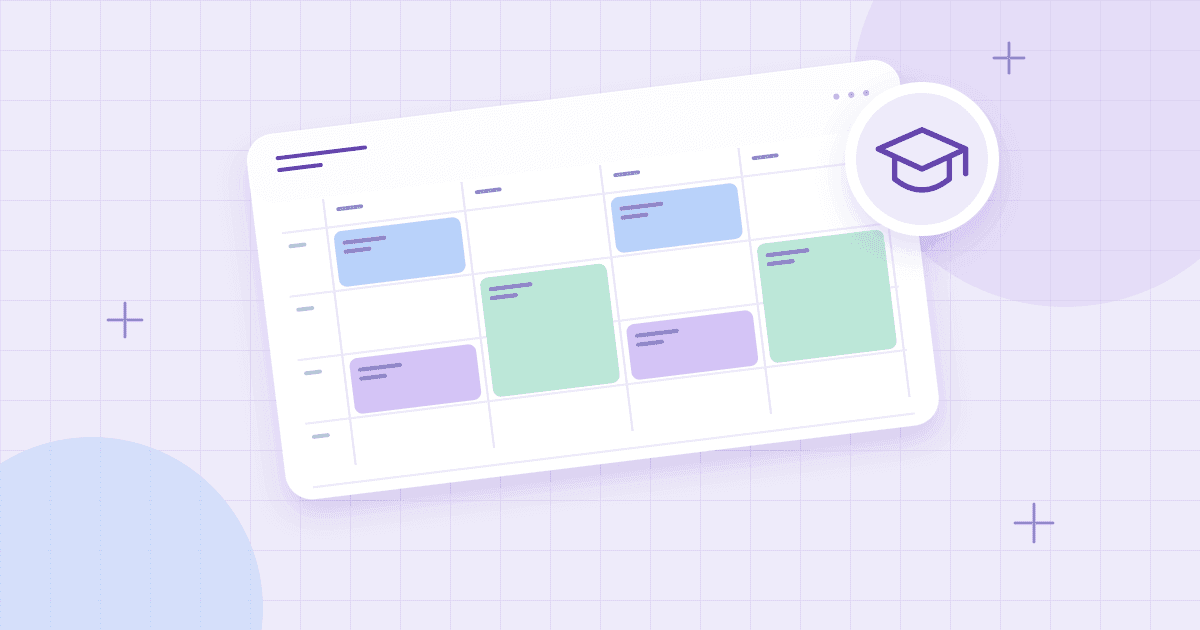
A class timetable needs to answer practical questions quickly: Where am I supposed to be? When does the next class start? Which days have long gaps? And will a new course section conflict with a lab or another commitment? A class schedule maker brings those details into one visual layout, rather than leaving you to compare several registration screens or screenshots.
Whether you are planning a college semester, a high school timetable, or a teaching schedule, the process begins with accurate class information. This guide shows how to organize course times, handle unusual meeting patterns, make a readable color-coded grid, and save a version you can check on your phone or print.
What Is a Class Schedule Maker?
A class schedule maker is a timetable tool designed for lectures, seminars, labs, tutorials, and school periods. It places courses on the days and times they meet, usually in a weekly grid. Unlike a general task list, it emphasizes recurring blocks and time conflicts. A class schedule may also include room numbers, instructor names, and travel intervals between buildings.
The goal is to make the week readable in seconds. Start with the online schedule builder and treat each class meeting as an event with a clear title, duration, and location note if appropriate.
Gather Your Course Details Before Building
Collect the official schedule for every course you plan to take. Record the course code, meeting days, start and end times, building or room, and the date when the schedule begins or changes. Many universities use combinations such as Monday/Wednesday/Friday and Tuesday/Thursday; do not assume a course meets every weekday.
Look carefully at classes with separate components. A science course might have one lecture pattern and a lab at an entirely different time. A tutorial or discussion section may also need its own block. Treat these as distinct meetings so you can see conflicts clearly.
If you are comparing potential sections before registering, prepare a provisional list rather than assuming a timetable is confirmed. The final version should match the school's official enrollment system.
How to Create a College Class Schedule Step by Step
Step 1: Choose an academic-week layout
For many students, a Monday-to-Friday grid is enough. Include Saturday or Sunday when your program actually uses those days. Set visible hours to cover your earliest and latest classes. An 8:00 AM to 8:00 PM range may work for one student, but evening or weekend programs need different settings.
Step 2: Add every lecture and seminar
Enter a clear event name such as “BIO 112 Lecture.” Set the start and end time and choose the days on which it meets. If your editor supports repeating weekday entries, use them; otherwise add each meeting separately. Keep section names distinct when two classes have similar titles.
Step 3: Add labs and one-off commitments
Labs can last longer than lectures and may require travel or preparation. Place them at their full duration. Include office hours, required workshops, or a regular tutoring appointment if they affect your availability. Optional study sessions can be added later in another color.
Step 4: Check for overlaps and tight transitions
A conflict is not always an obvious overlap. A class ending at 10:50 across campus from an 11:00 lab may be impossible to reach comfortably. Scan the grid for both direct collisions and unrealistic travel intervals. If a tool highlights overlaps, use that feedback, but check building locations yourself as well.
Step 5: Use colors consistently
Assign one color per course or subject. That makes it easy to recognize where a course appears during the week. Use a different, quieter shade for study time, part-time work, and personal commitments. Titles should remain readable even if colors look similar on a phone or a black-and-white printout.
Step 6: Add realistic study windows
Once classes are placed, look for open blocks. A one-hour gap may be suitable for reviewing notes or reading, while a longer opening could support a problem set. Do not fill every gap; include travel, food, and genuine rest. For a fuller system, pair the timetable with a study schedule for exams.
Step 7: Export a reference copy
A schedule is most useful when you can reach it quickly. Save the editable version, then create a PDF or image where those export options are available. Confirm that class titles and room notes remain legible at the size you will use. Keep a backup if the editor stores your work only on your device.
Sample College Class Timetable
Here is a simplified example; it does not represent a real institution's timetable:
| Day | Morning | Afternoon |
|---|---|---|
| Monday | 9:00 Chemistry lecture; 11:00 Writing | 2:00 Library review |
| Tuesday | 10:00 Statistics | 1:00 Chemistry lab |
| Wednesday | 9:00 Chemistry lecture; 11:00 Writing | 3:00 Statistics practice |
| Thursday | 10:00 Statistics | 1:00 Project meeting |
| Friday | 9:00 Chemistry lecture; 11:00 Writing | 2:00 Weekly review |
In an actual editor, use the true class durations instead of listing only start times. The table simply shows how repeating meetings and independent work can share the same weekly plan.
High School and College Timetables Are Different
High school schedules may use numbered periods, homeroom, lunch periods, or A/B alternating days. A general weekly grid handles simple fixed periods well, but an alternating-week timetable needs extra care. You may need separate Week A and Week B versions, clearly labeled, unless your tool explicitly supports alternating patterns.
College schedules often have irregular spacing, gaps between buildings, and multiple possible lecture sections. That makes accurate time blocks more important than period numbers. Students with online courses should distinguish live sessions from asynchronous assignments: the first belongs on the timetable, while the second should be planned as a separate study block.
Teachers can use a similar method, but their schedules may need preparation periods, supervision duties, and room changes. Choose labels that help answer their day-to-day questions rather than copying a student's design exactly.
Make Your Schedule Easier to Read
Use short course names and reserve detailed descriptions for event notes when available. Keep the grid focused on the hours you actually attend. Avoid visually tiny slots if most classes last an hour or more. If a timetable is too crowded, a list view can provide an alternative way to review the same entries.
Check mobile readability before taking a screenshot. Open the image on your phone. Can you distinguish courses without zooming? Are room numbers visible? If not, enlarge text, simplify titles, or export in landscape orientation. See the printable schedule guide for print-specific suggestions.
What to Do When Courses Change
Registration changes, room moves, and canceled sections happen. Update the original editable timetable rather than editing only an exported picture. When swapping sections, remove the old block and add the new meeting pattern, then recheck other obligations. A timetable is a reference, not a substitute for official institutional notifications.
At the start of each semester, create a fresh copy so you do not accidentally mix last term's course times with new ones. If your schedule maker saves in the browser, maintain an exported backup and know where it is stored.
Frequently Asked Questions
How can I make a class schedule online for free?
Use a schedule editor with a weekly grid. Add your classes by day and time, repeat recurring meetings, and adjust colors for readability. Save or print the result after checking all entries against official course details.
Can I use the same timetable for college and high school?
Yes, for standard repeating schedules. High schools with rotating A/B days may need two clearly labeled timetable versions unless alternating weeks are supported by the tool.
How do I avoid classes that overlap?
Place complete start-to-end blocks for every lecture, lab, and discussion. Inspect intersections in the weekly grid and account for travel. Confirm final availability in your school's registration system.
Should study sessions appear on my class schedule?
They can, especially when you want to protect a specific time after class. Use a different color from lectures, and keep flexible homework tasks in a separate planner if they do not need fixed hours.
Can I print my college timetable?
Yes, using the tool's PDF export or a browser print option when available. Check paper size, orientation, and font legibility. A compact landscape grid often works well for a five-day view.
Build an initial timetable in the free schedule builder, then refine it after you confirm your enrolled courses. A clear schedule is a small investment that pays off every time you need to know what comes next.